how i got lazy with citations
By jamie
Note
This guide is being written with the intended audience of academics / students who aren't necessarily that 'good' with technology. There is a lot more that both Zettlr and Zotero can offer you, but I'm focusing on showing how I use it, which hopefully should be pretty accessible to people.
Introduction: Why? And, What?
Zotero
Zotero is a citation manager. It's not the only citation manager around, but it's the best. There are many things that attracted me to Zotero, as opposed to other options (notably Mendeley and EndNote). Whilst knowing this isn't necessary for my little tutorial, I think providing justification is still useful! I'll start with why not EndNote or Mendeley first.
Firstly, EndNote costs money, which I like to spend as little of as possible. It's a one-time license, which is better than subscriptions, but it still attracts a hefty price for a full license. Importantly, however, EndNote is owned by Clarivate, who also own the Israeli company Ex Libris, target of many boycotts within higher education. You can read more about Ex Libris here, but know that they are pervasive within academic technology. ProQuest also falls under this bucket. Closer to home, the mandatory attendance app that my university uses was made by Ex Libris, and unsurprisingly has been subject to boycott.
Mendeley has a free plan, but has a subscription for 'premium' features, which includes extra storage and AI bloat. More importantly, Mendeley are owned by academic evil overlords, Elsevier. I'm not at all the best placed to fully discuss why Elsevier are so terrible, so I encourage you to do your own research. Their controversies are numerous.
Zotero, however, is a breath of fresh air. It is free (as in libre) software, and helpfully also free (as in gratis) to use. The only paid feature is extra storage. I've been using Zotero for years, and I've never come close to needing extra storage - as long as you don't save PDFs in the software, the free plan will get you very far. It is owned by Digital Scholar, a non-profit that (at least to my knowledge) have no shady Israeli or anti-intellectual history. Admittedly, most of the positive reason for choosing Zotero is due to it being free (libre). I'd say the Why Zotero? webpage gives a pretty useful insight into why Zotero's free nature is far superior. Even if you don't care about software politics, Zotero is just good software. It does what you need it to do, it's easy to pick up the basic features, but it has a lot of advanced functionality if you need.
Zettlr
Zettlr is writing software. Specifically, it's a visual markdown editor. Like Zotero, it's both free (libre) and free (gratis). What delight! Zotero is quite well-known - it's been around since 2009, and most researchers I know have at least heard of it. Zettlr, not so much. However, Zettlr is also really good. I'll admit here that I don't use Zettlr for all my writing or note-taking. I'm writing this piece on Logseq right now. The way Zettlr works is perfect for how I write essays, but doesn't suit my more casual note-taking work, though this is more personal preferences. I'll also admit I've never tried Obsidian, so I can't compare it to that. I had a bash at Notion, and was immediately put off. Not my vibe. Zettlr packs a lot of punch. It's a bit more difficult to pick up than Zotero, but well worth the effort, especially when tying the two together. I currently run PASS (Peer Assisted Study Sessions) for first-year philosophy students at my university, and I ran a session on Zotero x Zettlr. Some of them were in disbelief that Zettlr can do all your citing for you. The computer can do things! What wonder!
Setting Up Zotero
I'm not going to go into platform-specifics for these next few sections. Though I will say, I've tried this on (Asahi) Linux, Windows, and MacOS before, all with little issue.
Unsurprisingly, the first step is to download Zotero. There's nothing special you need to do during set-up. I'd strongly recommend that you also download the Zotero 'connector' for whatever browser you use. The connector is a browser extension that allows you to save an article, book, webpage, etc. into Zotero with just one click. It'll import all the meta-data for you! The computer can do things!
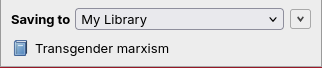
Once you have Zotero up-and-running, I'd encourage you to play around a little bit. You can make folders to save your items into. I keep it simple, with a folder for each essay I write. Once you're comfortable with clicking around the basics of Zotero, you'll need to download a plugin called BetterBibTex. This is how we're going to get Zotero to work alongside Zettlr. BetterBibTex is a really powerful plugin, and one I barely know anything about. I've only ever used it for bridging together Zotero and Zettlr.
Once you have BBT installed, right click on 'My Library', then click on 'Export Library'. You want to make sure that the format is selected as 'Better CSL JSON'. I'd also recommend ticking 'Keep updated'. This will, well, keep the export updated automatically. Finally, you'll be asked to pick where this file goes into. I keep it in my cloud folder, where I keep the PDFs I read from.
That's it for the Zotero set-up! Easy-peasy (I hope!)
Setting Up Zettlr
Once again, start by installing Zettlr. As mentioned, Zettlr is a markdown editor. If you've used other markdown editors before (e.g., Logseq, Obsidian), then you can open whatever files and folders you've used before in Zettlr. Again, I have no experience with Obsidian, but be warned that Logseq formats its files strangely, so things will not be as expected if opened in Zettlr.
Of course, you can also start from scratch. Zettlr defaults to a Tutorial workspace when you first open it, and whilst it's a little overwhelming, I think it's a really accessible introduction, especially for those not used to markdown editors. The most important thing to know about Zettlr's way of working is that it is built around a thing called a workspace. This is just a fancy name for the folder that contains all the markdown files you'll work with. Within a workspace you'll have subfolders, and then the markdown files themselves. Keeps things nice and organised!
If you're starting from scratch, you'll need to create your 'workspace' somewhere on your computer. This is just creating a folder, wherever you want (again, I put this on my cloud folder). Then you can open it in Zettlr.
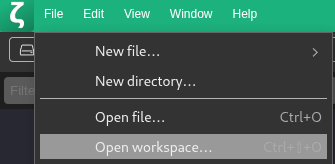
Again, play around a little bit with it! The best part of Zettlr, for me, is the right-hand sidebar. It shows you the table of contents, any references you've cited, and any related files (I don't use this).
Once you're familiar with Zettlr, it's time to make it kiss Zotero <3
Go into 'File' and then 'Preferences'. Within 'Preferences' you'll want to go to 'Citations'. Here you'll get choice on how your citations get formatted. Importantly though, there is a bar below asking you to select a file for your citation database. Select the file you made when you exported your Zotero library. And that's it! For set-up, at least. Zettlr will read this file, and will automatically watch for any updates to it, so you don't need to continually upload anything. The updates are pushed quickly, so you can cite something you've only just added to your Zotero.
Now it's set up, you can start citing. To do this, type [@ . Some suggestions will come up (as seen below).
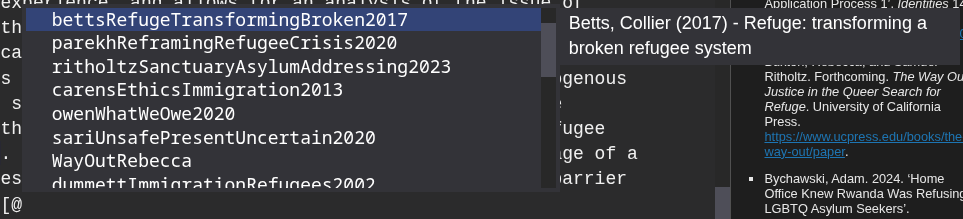
These are all the 'citation keys', which are generated by BBT. In Zotero, you can see what all the citation keys are for each item. I've never needed to look for that though, the citation keys are generated by taking the (first) author, some words from the title, and the year. Hopefully you know those bits of information from what you're citing. If you don't, I fear your problem is much larger than citation management. Once you close the square bracket, the citation will get generated, and added into the references sidebar! It's about as automatic as you can get for in-line citing, and I love it!
Once you're finished with your writing, you can automatically generate your bibliography too. Whilst Zotero lets you generate a bibliography from your folders in just a few clicks, Zettlr lets you do this with even less effort. Zettlr has Pandoc (a file converter) automatically included within. This makes life super-easy. To export your writing (including your citations and bibliography), click on 'File', and then 'Export'.
You can export it as a Word (.docx) file. And that's all you need to do! The export will come with properly rendered inline citations, and a properly rendered bibliography. It's beautiful to see how well the computer can do things.
4. Conclusion
This is by no means a comprehensive discussion of how you can use Zotero or Zettlr. Both pieces of software have so much more amazing functionality. I started writing this as a way to show people how the computer can do amazing things. I think some people forget this sometimes, myself included.
So-called 'AI' definitely hasn't helped. I see a lot of people become accustomed to believing that a computer automating a process must mean it's some form of 'AI'. I'm not going to get into that discussion now. But please remember that the computer can do things, and these things do not need you to be a programming whizz, or anything of the sort!